Get started
Start using Caps Lock as a switch in six steps.
- 01
Download
Get the latest DMG
- 02
Move to Applications
Drag Capswitch from the DMG
- 03
Launch
Open Capswitch from Applications
- 04
Allow access
Enable Capswitch in Accessibility
- 05
Choose a mode
Pick one role in Mode settings
- 06
Test it
Press Caps Lock and check the state
Install
Add Capswitch to Applications from the distribution DMG. Do not keep using it directly from Downloads.
- 01
Open the DMG
- 02
Drag Capswitch to Applications
- 03
Launch Capswitch from Applications
- 04
Open Settings from the menu bar icon
Multiple copies can receive different macOS permissions. Keep and use only the copy in Applications.
Allow access
Accessibility access is required to detect Caps Lock. Input Monitoring is not required.
- 01
Open Input in Capswitch Settings
- 02
Select Request permission
- 03
Enable Capswitch in macOS Accessibility settings
- 04
Return to Capswitch and select Check again
- 05
Confirm the status is Running
Mode-specific setup
- Light / Dark: allow Automation
- Microphone: choose the input device to control
- Shortcut: assign macOS Shortcuts
Basic controls
A single press normally switches state. Volume, timer, and shortcut modes also use repeated taps or press-and-hold.
Switch the state
Move the selected mode to its next state
Check at the keyboard
On, off, and blinking follow the current state
Check on screen
Turn the switch overlay on or off in Settings
Keep native Caps Lock
Choose three, four, or five taps in Input settings
Choose a mode
Choose one of ten roles based on the repetitive action you most want to remove.
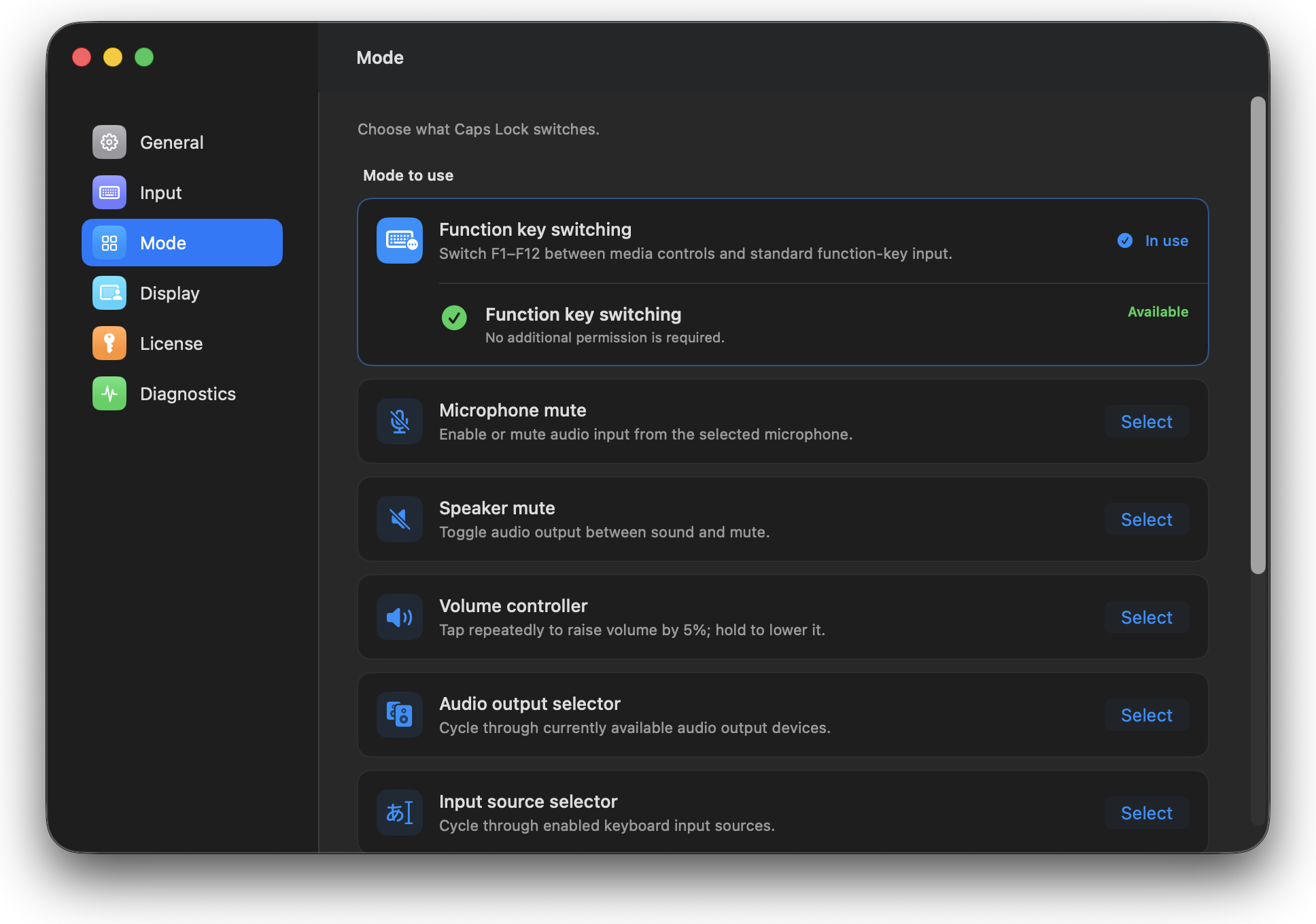
01Function key switching2 states
Switch F1–F12 between media and function keys
- Control
- Tap
- States
- Media controls → Function keys
02Microphone mute2 states
Mute or unmute the microphone
- Control
- Tap
- States
- Live → Muted
03Appearance2 states
Switch between Light and Dark
- Control
- Tap
- States
- Light → Dark
04Prevent sleep2 states
Start or stop sleep prevention
- Control
- Tap
- States
- System setting → Stay awake
05Speaker mute2 states
Mute or unmute audio output
- Control
- Tap
- States
- Playing → Muted
06Volume controllerContinuous
Repeated taps raise volume; hold lowers it
- Control
- Repeat
- States
- Current volume → +5%
Hold to lower by 5% steps
07Audio outputMultiple
Cycle through selected output devices
- Control
- Tap / Tap
- States
- Output 1 → Output 2 → Next output
08Input sourceMultiple
Switch between selected input sources
- Control
- Tap / Tap
- States
- Input 1 → Input 2 → Next input
09TimerTime
Start, pause, and adjust a countdown
- Control
- Tap / Tap / Time up
- States
- Stopped → Running → Paused → Done
While stopped: repeat +1 min / hold −1 min
10ShortcutCustom
Assign actions to each press pattern
- Control
- Tap / repeat / hold
- States
- Detect press → Run action
Hold can run once or continuously
HUD and LED
The HUD and physical LED show the current state of the selected mode.
- HUD visibility, position, edge distance, and duration
- Keyboard used for LED feedback
- Which function state lights the LED
- Detect again, sync, and blink test
License and updates
Try every feature for 14 days. After purchase, activate the license key in the app.
- 01
Open the purchase page from License
- 02
Copy the key on the purchase-complete page
- 03
Enter it in the app and select Verify license
- 04
Configure automatic or manual updates in About
Troubleshooting
Start with the item closest to the status you see.
The app says Stopped
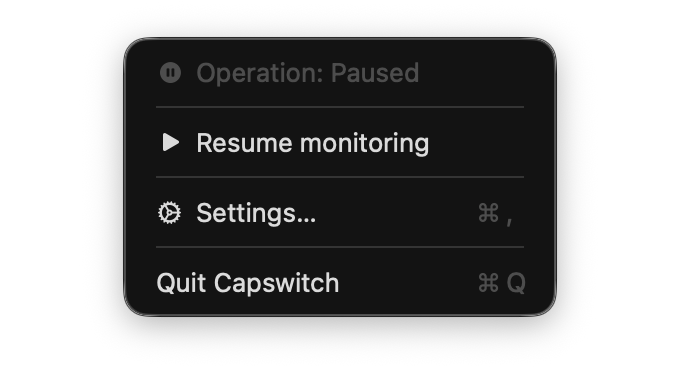
Open Input, check Accessibility and Pause monitoring, then select Check again.
It does not work after allowing access
Keep only the Applications copy, toggle Accessibility off and on, then restart Capswitch.
Permission cannot be requested after removal
If access was removed while running, select Restart Capswitch and request it after relaunch.
Caps Lock does nothing
Check pause, license, and selected mode, then review Recent events in Diagnostics.
Native Caps Lock still changes
Confirm monitoring is Running. Quit duplicate copies and launch only the Applications copy.
The LED or HUD does not change
Enable the HUD, detect the keyboard again, then run Sync or Blink test in Display.
The microphone cannot be selected
Select Microphone mode and detect inputs again. Some USB and virtual devices do not support mute.
Stopped by license
Open License, enter the purchased key, and verify it online.
Diagnostics and support
If the problem remains, review Diagnostics and contact us through GitHub Issues.
- 01
Open Diagnostics in Settings
- 02
Check mode, feature state, and app state
- 03
Add recent events and reproduction steps to the Issue
Do not post license keys, purchase details, or personal information in a public Issue.